
Appearance
Connecting your switcher
Connecting your switcher to MiruSuite enables the AutoCut feature, which allows MiruSuite to automatically cut between different shots, and prevents unwanted movements of live cameras. When you try to play camera presets for live cameras, the move will automatically be blocked.
INFO
We currently support Blackmagic ATEM, RossTalk and VMix switchers. If you have a different switcher, please contact us.
Start connection
To connect your switcher to MiruSuite, follow these steps:
- Make sure the switcher is reachable via network from the current device.
- Go to the Switcher page, enter the IP address of the switcher and click the save button. Depending on the selected switcher type this view might look different (additional port configuration, etc.).

- Click the Connect button at the top. The label at the top should switch from Disconnected to Connected.
Configuration
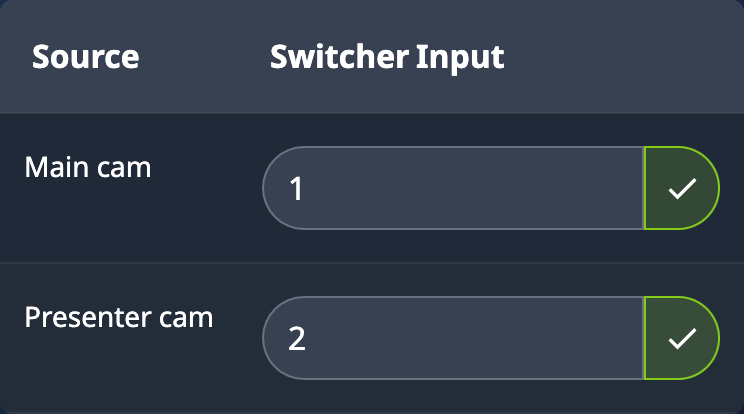
For MiruSuite to know which device belongs to which switcher input, a mapping from MiruSuite devices to switcher inputs is required. You can configure this in the table on the right side. Press Enter or use the ✓ button to update the input values.
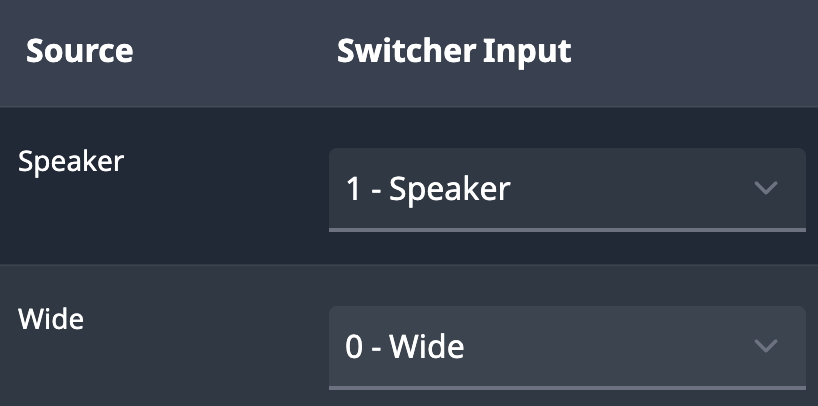
Depending on the switcher type, MiruSuite might be able to display available switcher inputs. Simply select the desired input from the dropdown menu.
TIP
Make sure that no switcher input is used multiple times, as this can cause unwanted behaviour. Devices with an audio input do not need a switcher input.
On devices with an AutoCut Role component, you can also configure the switcher input within the component.
Ross Switcher
For connecting a Ross switcher, you need to select the switcher model and the target ME (the ME that will be controllable from MiruSuite) in addition to the IP address. The port can be changed if needed. The default RossTalk port is 7788.

For configuring the switcher inputs, you need to enter the desired input or MME command as specified in the RossTalk API documentation. There are two typical input patterns:
- IN:input-number standard switcher input
- MME:me-number:PGM set MME to program (e.g. for PIPs)
VMix Switcher
WARNING
Make sure to have the firewall configured correctly to allow incoming connections to the VMix API. VMix uses port 8088 by default.
Preview and program devices
If your switcher and devices are setup correctly, the Preview and Program devices will be displayed at the end of the Switcher page. In the Device page, the Preview and Program states are indicated in the video feed of the corresponding device.